Zen Cart + Best Ecommerce Practices = More Sales. Here’s the Proof.
May 24, 2007 by Eric Leuenberger
Filed under Conversion, Marketing Strategies
Ok, as many of you know through my posts at the Zen Cart Forums as well as from reading my site here, I talk a lot about how to implement various strategies that combined can increase sales for you.
It Hit Me Square in the Head
It hit me square in the head that I should show you that what I am talking about DOES work (and can work for your store too). Let me make it clear that there are various components that go into increasing sales from any e-commerce site.
It’s not all about “the product” or “the traffic”, or all about the design; sure, those are critical elements, but it’s much more than that.
It’s about the “entire package” from the moment a potential customer sees your search engine listing (whether paid search of organic seo) to the moment they complete the process of buying from you. It’s all part of the “Total Customer Experience”.
If you haven’t read my post yet on “The Online Customer Experience“, then you may want to go over that sometime.
In future posts, I will go over the various components that combined will help you achieve more from Zen Cart (the SALES way). But that’s for another time.
Here’s the Proof
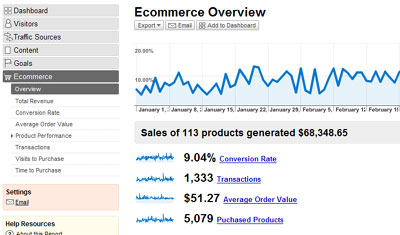
Right now, I want to show you some real screen shots of results from one of the many “Zen Cart” sites I have worked with (yes, I am available for contract work if you need it. Contact me and we’ll talk.) I have whited out various items (name, domain, etc…) to protect the privacy of the owner, however, many of you can see from these images that they are taken directly from the Zen Cart Admin section and Google Analytics. In case the reports don’t look familiar to you, they come directly from the new BETA Reports section Google just added this week to Analytics.
The numbers I want you to note in the above screenshot are:
- The Conversion Rate of 9.04% (well above average)
- The Average Order Value of $51.27 (did you know there are a few Zen Cart 3rd party modules that will help you increase this number?)
- The Sales generated to date in 2007 of $68,348.65
Keep in mind the conversion rate is based on ALL traffic coming to the site. Also keep in mind that “conversion” means a SALE has occurred (translating to … “you just made money!”)
Now, the numbers I showed you there are for all of 2007 (to date as of this writing).
The numbers I am showing you below are taken directly from the Zen Cart Admin “reporting” section (“Sales Report” contribution, although I have an older version running here), and detail the total sales generated since the day the site was launched (using Zen Cart). Let me say that this particular client had NO web presence before this (so, they were starting a “ground zero” with not a single customer). This was their first e-commerce site.
Why is That Important?
I mention it because I want you to see each month how the sales steadily increased, and then jumped (this was due to a number of traffic / seo strategies I provided as well as implementation of principles I learned over the first few months using Google Analytics). See the difference a properly installed and properly analyzed tracking system can make!
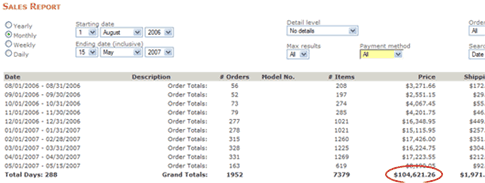
The numbers I want you to note in the above screenshot are:
- The Sales generated since site launch of $104,621.26
- Also note how the # of orders is steadily increasing from month to month (a sign of continued growth).
Seeing is Believing
So now I have shown you that you can make more sales using Zen Cart, your task is to go out and do it! Using this website, mini-books I am working on, and various modules I am working on, I intend on continually showing you new ways that you can make it work. I am always testing. When I find something that works, I typically post it so don’t forget to subscribe to my feed (it’s free) and / or bookmark this site so you don’t miss out on anything.
Now it’s your turn. Tell me your thoughts on what you would like to see (not already built) to help you increase sales from your store. And if you want a contractor to help you get there, drop me an email or give me a call.
Subscribe Today and Start Winning More Customers
Gain valuable insights and strategies that will help you win over more customers and increase your sales.
Click here to Subscribe to my RSS feed.New Domain & New Server for Zen Cart Optimization Blog
May 24, 2007 by Eric Leuenberger
Filed under E-Commerce Optimization
You may have noticed, the new domain is now in place for the Zen Optimization and Marketing site. Not surprising, it is now officially ZenCartOptimization.com .
How did you get here if you had bookmarked the old site then? A nifty 301 Redirect.
In case you weren’t aware of it, a 301 redirect is something that all search engines like you to use (including Google who actually endorses it) if you have moved your site page pages on it to new locations.
Or in other words:
301 redirect is the most efficient and Search Engine Friendly method for web page redirection. It’s not that hard to implement and it should preserve your search engine rankings for that particular page. If you have to change file names or move pages around, it’s the safest option. The code “301″ is interpreted as “moved permanently”.
I only bring it up here now so you can keep it in mind when / if you are thinking of moving your Zen Cart install to a new domain or moving a page within your current cart to a new location (you delete a page and create a similar page of content). If you do any of that, and want to keep your search rankings, the 301 redirect is the way to go.
Want more information on 301 redirects? Try these links for starters: High Rankings Forum and Google
Subscribe Today and Start Winning More Customers
Gain valuable insights and strategies that will help you win over more customers and increase your sales.
Click here to Subscribe to my RSS feed.How to Use Attributes Quantity Price Discounts Field in Zen Cart
May 20, 2007 by Eric Leuenberger
Filed under E-Commerce Optimization
Recently in the forums I answered a question that reminded me of a situation I was quite a while back. An avid Zen Cart follower had a question on how to use the attributes quantity discount option within Zen Cart.
The question was as follows:
“Can someone please tell me plain and simple, how do you use the Attributes Qty Price Discount Field?
What is the syntax?
I have a single product and price is based on quantity as follows.
1-4 $35 ea
5-9 $25 ea
10-19 $20 ea
20-49 $12.50 ea
50-99 $7.50 ea
100+ $5.00 ea”
The answer is as follows for those of you looking for it. Keep in mind that there are “2 structural ways” you can use quantity discounts within Zen Cart.
- The first way is to simply offer a quantity discount for a single product based on the number of items the user puts into their cart (like bulk discounting).
- The second way to use them is to offer a Quantity Discount on an Attribute of the product. For example and illustration, the product is priced at $50.00 and you can add-on a “pen” (again, for illustration only) for an extra $1.20. However, if you add-on 5 -10 pens, you get them for $1.00 each. Add 10 or more, get them for $.75 and so on.That is an example of using quantity discounts on an Attribute of the main product (not the main product itself).
Ok, so having explained that, I’ll detail my response to the Zen Cart question presented above. The following is how you would setup Quantity Discount Pricing for Zen Cart using the sample figures mentioned earlier.
The Answer
Take the following string (adjust to fit your needs) …
4:35,9:25,19:20,49:12.50,99:7.50,1000:5.00
And paste it into your “Attributes Qty Price Discount:” box for the product attribute you wish to “discount by quantity”.
If you are doing “Quantity Discounts (not directly related to a single product ‘attribute’)”, follow the same concept as above, except do the following:
1. From within the Admin click on Catalog > Attributes Controller.2. Find the product for which you want to offer a quantity discount for and once selected, click on the “Display” button
3. Now, the product will be selected. Click on the “Price Manager” button near the top of the page
4. Scroll all the way to the bottom of that page and find the section that says “Preview Only … Current Price Status … Preview Only”. Click on the “Edit” button.
5. Scroll to the bottom of the next screen, and find the area that says “Add 5 Blank Qty Discounts:” and has a “add blank discounts” button under it. (bottom left). Click the button. (If you need more qty discount options, click the button again until you have the required number. Each time you click, 5 more option spaces will be added). As an example, if you need 6 quantity discount options then you will need to click the button TWO times in order to get enough options to fulfill your “6 qty discount levels” needed. (you’ll end up with 10 boxes, just fill in the 6 you need and leave the remaining 4 blank).
6. That will bring up a section that allows you to set your prices and qty discounts accordingly. Set them and be sure to click the “Update” button to save. Viola, ready to go! If there are extra “option boxes”, just leave them blank. After you click “Update” they will “disappear”.
That should do it! Comments? Questions? Post them here.
Subscribe Today and Start Winning More Customers
Gain valuable insights and strategies that will help you win over more customers and increase your sales.
Click here to Subscribe to my RSS feed.


